

Setup guides
Set up an M3U playlist and test one channel at a time
Import the playlist through the playlist screen, then try two authorized entries you can name. The list can load even when one video address fails.…
Load a playlist, match the right player and test what you can actually watch.

Import the playlist through the playlist screen, then try two authorized entries you can name. The list can load even when one video address fails.…

Your television can report a 2160p HDMI signal while the player sends an upscaled 1080p stream. Look at the player’s available diagnostics for the…
A master HLS playlist describes variants or renditions. A media playlist describes the sequence of media segments for a stream. Identifying the level…
Open one programme and compare the tracks it actually offers with the language shown in the guide. Keep one working programme as your control.
A player is the software on your screen. A viewing account or authorized playlist is what it plays. Some products bundle them, so check who supplies…
Use the account input that the provider and player both support. Check the address format before changing a working password.

Use the device and room where you actually watch. Pick a live channel, one item you can replay, a programme guide entry and the number of screens you…
Read the written plan for the number of allowed active streams, then test with exactly that number of authorized devices. Installing a player on…
Confirm the provider's device-change process and the player licence before removing the old app. Keep enough information to restore the old setup…
Use the same source and compare stereo output with surround output. Record the format the player reports and what the receiver indicates. Some sources…
Use the same authorized playback page, account and network in both browsers. A browser can support a container while lacking a particular codec,…
Open the verified publisher or platform listing for your exact device. Compare the app name, publisher and support destination before installing or…

Start by identifying the first thing that fails. An app that will not launch, a rejected login, a channel that will not play, a blank TV guide and a…
Start with one screen, one authorized account and one channel you can recognize. Get those three things working before you import a big list or change…
Use two completed programmes on the same channel to check what catch-up plays, how far back it goes, and where it starts.
Move one known channel and guide mapping first. Keep the old player usable until you can reproduce a correct guide time and a working stream on the…
Check the app, account input and device before your first test.

8kiptv.io
Compare the plan term and the allowed simultaneous sessions on the same player. Use a small live sample and a longer playback test on the same screen.
Publisher reference
trexiptv.app
Ask for the accepted player and sign-in fields before starting the trial timer. Check a guide refresh and a second concurrent session only if allowed.
Publisher reference

goldenott.app
Read the plan and trial terms together. Record the full payment and ask when the trial expires in your time zone.
Publisher reference

dream4kiptv.net
Put two allowed devices on the same test timetable. Record whether either stream stops after the second player starts, and which plan was tested.
Publisher reference

8kiptv.app
Confirm which player matches the supplied login method, then check a live channel, an audio track and a guide refresh.
Publisher reference

8kpro.tv
If resolution is your deciding factor, check the stream info on a known sample and record the TV output separately.
Publisher reference
team8k.tv
Use the country directory to name the feed you want. Ask for the specific station edition and time zone, then check your app's current store listing.
Publisher reference

megaott.io
Identify the exact hostname and account route on the invoice. Check whether the support page can identify that order before moving devices.
Publisher reference

ultra8kiptv.app
If UHD playback matters, test one identified title with the player information overlay and the TV output setting. Also test a fallback sample in a…
Publisher reference

smarter8k.app
Write down the app store publisher and service invoice name as two fields. Confirm who handles a player licence versus a service login.
Publisher reference

b1giptv.io
Start with the real screen and store region. Ask for the right version instructions and note whether the price is per household account or per stream.
Publisher reference

promax4k.tv
Compare plan total, connection allowance and the app route for one TV. Retest a guide refresh after any player or account change.
Publisher reference

hotiptv.co
Follow the current navigation from the domain and record the quoted total, currency and trial start conditions in the same session.
Publisher reference
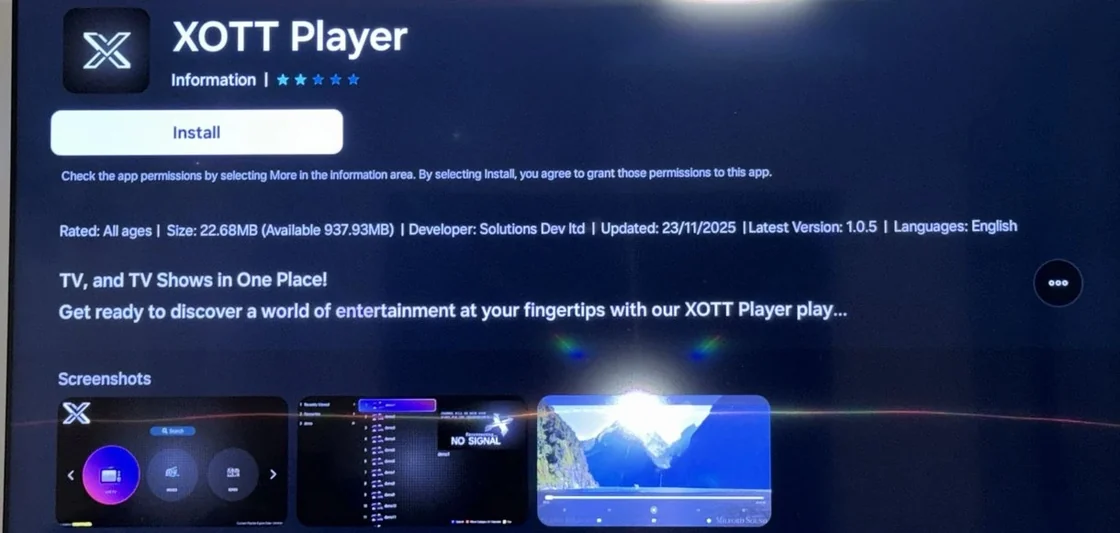
xott.app
Find the installation path for the exact model before buying a term. Check whether the player appears in the device's regional store.
Publisher reference

crystaliptv.app
After activation, test one guide refresh and reopen the app. Note whether playback works while the guide is empty.
Publisher reference

4kott.app
If a seller directs you here, ask for the legal operator, accepted player and a dated plan record before comparing price.
Archived reference

dinoiptv.app
Before starting a trial, use the actual TV or box to confirm that the player opens. Save the guide and playback results separately.
Publisher reference

lion-ott.app
Use the install guide for your device family and confirm whether the listed term renews. Keep the provider contact method with your invoice.
Publisher reference

hellosky.tv
Ask for the exact app publisher, television model support and a written order summary. Check the public support route before sending payment.
Archived reference

4kiptv.app
Check whether your TV is using a native player or an HDMI device. Run the same sample after one change and compare the source info.
Publisher reference

megaott.app
Record the .app hostname at the point of enquiry and ask where a login can be recovered if the player changes.
Publisher reference

skyglassiptv.app
Confirm the exact TV model and compatible player. Ask which organization accepts the payment and provides service support.
Publisher reference

rynexplay.app
Find the actual app publisher and ask whether the product is a player, a viewing subscription or both as separate purchases.
Archived reference
starshare.app
Ask which site will handle renewals on the original receipt and whether existing player login details stay the same.
Archived reference

5glive.app
Check whether the instructions assume a particular player and document the app version and order contact before testing a connection.
Archived reference

iptvaustralia.app
Use the city and state with a named channel, especially where a live feed and an on-demand app differ. Check the TV guide in your local time.
Archived reference

iptv-canada.app
Name the station and city, choose English or French audio and captions, then check whether the guide identifies the matching feed.
Archived reference

ukiptv.app
Name the regional edition and the device. Identify whether the broadcaster app covers the same programme before buying a separate plan.
Archived reference

iptvusa.app
Write down the station call sign and market, and check the published schedule for the live programme. Record your device and ZIP area without posting…
Archived reference

iptveurope.net
Choose one country, language and television feed before asking about compatibility. Check the app store region and term currency independently.
Archived reference
Keep the supported login instructions and app purchase record privately. Test a known channel and guide entry first so you can compare the restored installation.
Read moreVerify that the app opens under the correct storefront account. Add one authorized viewing account, then check one programme and its guide before restoring the rest.
Read moreShare the public model name and software version. Keep serial numbers, order details and private account values out of the post.
Read moreClose the active session on the old box if your plan permits one session. Keep its setup intact as a control until you can repeat a test on the replacement.
Read moreRecord the old offset, then verify a known station against the broadcaster on the new player before applying it. Different player settings can apply the same time adjustment in different places.
Read moreStart with a programme you would watch anyway. Pick the screen you will use, the app that is supposed to carry it and the person who needs to be able to find it tomorrow. That gives your first setup session a finish line. The television should open the right app, play the intended feed or title, and return to it through a route someone else in the household can repeat. A long channel list can wait until those basics work.
Write down a small viewing task before you touch the device. “Local news on the sitting-room television at 19:00 with captions” gives you more to check than “live TV on the new box.” If replay matters, name a recent episode you should be able to find without waiting for a new broadcast. If the priority is a match, confirm the fixture, date, market and authorized broadcaster before spending time on the player. A subscription that names a sports network may carry a different edition or package from the one that lists that event. Use the provider’s current offer and the broadcaster’s listing for the programme itself. Channel directory · Sports competition and broadcaster references
| Household task | First item to try | What should be true at the end |
|---|---|---|
| Watch a local bulletin | A station with a named regional edition | The picture and the local listing identify the intended edition. |
| Catch up on a missed episode | A recent eligible replay with a known title and date | The archive opens the correct episode and returns to its list when you exit. |
| Use captions most evenings | A programme whose service lists a caption track | The viewer can turn on readable captions with the normal remote. |
| Follow sport on a shared television | A regular live programme before the fixture day | The household knows which app, profile and input to use. |
| Replace an older player | An item that works on the old device | The replacement passes the same task and the old route remains recoverable during the change. |
Choose an easy control for the same session. Pick a known playable item from an app already on the screen or a provider-approved sample that does not require your paid account. A control lets you confirm the device, remote and picture before you add a new service. Choose something you can use again if the new app fails. When you have time to check only one thing, the best control is the ordinary thing your household already knows how to play. Note how you opened it and whether audio was present.
Treat features as part of that viewing task. One person may want a certain language. Another may care about large captions or about returning to the guide from full screen without signing in again. Ask the people who will use the television to show you their normal route. The end of setup is a useful time for that check because they can tell you which step they would have missed. A working setup that nobody else can open from standby is still a setup you have to operate for them.
There may be three different accounts in front of you. The store account installs the player on the device. The player may have its own licence, activation or profile. The viewing provider grants access to programmes through its own supported sign-in path. Sometimes one app combines those roles. Write the name of the issuer next to each requirement before trying to enter details. A receipt for the player can help you recover a player purchase. Use the provider’s order or account screen to check viewing access and the date it begins. Player and viewing account guide
Ask the account holder or provider for a short handover. It should name the exact app and publisher, intended device, supported setup route, active viewing plan and the private support channel. If the service uses a three-field login, record that it needs a server address, username and password in the private setup note. Keep the actual values in the approved place where the account holder can retrieve them. If the service supplied an authorized playlist address, protect the entire address. Credentials or an access token can be embedded in it. A screenshot cropped to the start of an address can still reveal details you did not intend to share. Three-part player login
| Information to hand over | A useful record | Where to keep it |
|---|---|---|
| Exact player | Complete store title, publisher, target device and store link | Household setup note |
| Viewing entitlement | Service name, plan period, agreed screen or stream rules, account holder | Private account record |
| Setup path | Native app sign-in, supported pairing, three fields, authorized playlist or provider portal | Household note for the method, secure record for the values |
| Receipt and recovery | Store account that bought the app, provider order reference and recovery route | Private account record |
| Normal viewing route | Television input, app shortcut, profile and two familiar programme examples | Short household note or card by the remote |
If the provider offers a supported on-screen pairing code, follow the directions displayed by the app and use the service’s verified sign-in destination. Keep the code on the private setup screen. If the account belongs to someone else, have that person use the provider’s own approval or sign-in flow and confirm which devices are supposed to remain active. For a replacement, ask whether an old device registration must be released before the new one can be added. Device registration and allowed simultaneous playback can be separate limits. Confirm the rules with the service so you can plan a move without interrupting the only screen that already works. Moving a viewing account to a new device · Checking concurrent stream limits
If you are setting the television up for a relative, agree who will handle the next sign-in prompt. The person paying for the viewing plan may be different from the person whose app store account is on the screen. Give each person the instructions for their part. Before leaving, verify that the account holder can find the official recovery page, access their recovery method and locate the provider’s order record if they need it. A note saying “contact Alex for the app store purchase” can be perfectly useful when Alex knows which account and purchase it refers to. Store that distinction before a device fails, when the information is still easy to check.
Identify the device that will run the app. A smart television can be showing the home screen of a separate box. The installation menu on the television and the one on the box belong to different systems. Use the remote you normally pick up, bring up the home screen and check the device name in its settings. This is the device to use for the store lookup. On a built-in TV app, keep the television model and software version. On an external player, record the box model or generation. That small note saves time later when a similar-looking device has different menus. Identify which player your television is using
Search for the complete name from the handover. Open the listing and read the publisher, supported device information and any price or activation requirement. If a related app appears with a nearly identical name, compare its listing with the provider’s or publisher’s link. A search result on a phone can help locate documentation, but confirm whether the exact app is available from the device’s own store in your market. Google documents installing and reordering apps on Google TV. Apple documents App Store installation for Apple TV 4K and Apple TV HD. Follow the route for your actual device and consult the manufacturer’s information for other models. Google TV app installation · Apple TV App Store downloads · Publisher verification
If the provider’s recommended app is unavailable, ask which alternate player is supported before paying for a lookalike or buying hardware. Ask which setup method that alternative accepts and whether the feature you need works there. A player can accept a given playlist format while the viewing app’s replay catalogue or account pairing remains specific to the provider. A working live item is a good first check. Replay, captions and multi-screen access still deserve their own checks if you rely on them. Use the publisher’s official download routes and version information when the device has a supported installation method outside the store. Official player download routes · App and player reference
On a new device, have the correct remote, input and network ready before installing the player. On a shared device, first open the app that already works and write down the path back to it. Keep the old installation available during the test if the platform and account allow it. Use a separate supported profile or setup slot for the new configuration where practical. If you are replacing an existing configuration inside a single-slot app, confirm how to recover the original connection and favorites before overwriting it. The normal device setup screens tell you which account and input you are changing.
Pick a quiet window for the first attempt. A few minutes before a scheduled match leaves little time to learn the remote or wait for an account activation. If a required operating-system update appears, follow the device maker’s instructions and allow it to finish. Return to the home screen and confirm the same known item still plays before adding the new app. Record versions after the update. If the player asks for permissions, read the request in context. A casting app may need local-network access for discovery on a supported device. A request you cannot tie to an intended feature is worth checking with the publisher before accepting. Local network access for Google Cast
Use the smallest initial configuration the service allows. Connect one supported viewing account or import one authorized playlist. Leave optional guide sources, picture changes and home-screen rearrangement for later in the session. A simple first pass gives you a known launch and sign-in result before more settings get involved. If a home-screen code or account prompt appears, record the step in your notes after finishing it. Leave the credential values out. If you need help with a step, describe the prompt and the app version and use the verified support channel.
Suppose, in a fictional household, the older player is used daily on the main television and a replacement box is ready on another HDMI input. The account allows one simultaneous stream. The household member ends playback on the old box, verifies the new input, installs the supported app and signs in. They play the same regular news feed on the replacement. Only after the new route works do they make it the usual input. If the pairing is rejected, the old setup remains available while the account holder checks the device policy. This sort of staged move makes a failed attempt an inconvenience you can reverse in seconds.
Treat the times below as a starting plan. Installation and provider activation can take longer. The order is more useful than the clock. In particular, avoid repeating sign-in or removing a device just to make a timetable work. If a prerequisite is missing, record it and return to the working route. A checklist gives you a place to restart after the provider answers or the app is installed.
| Suggested window | Task | Continue when |
|---|---|---|
| Minutes 0–3 | Identify the active screen and open the known control | The remote, app or input, picture and audio are understood. |
| Minutes 3–6 | Open the verified listing and install or launch the approved player | The correct publisher is confirmed and the app reaches its opening screen. |
| Minutes 6–9 | Complete the supported sign-in, pairing or playlist import | You reach the expected account, list or profile and can find the target item. |
| Minutes 9–12 | Play the target and one normal control in the service | You know which feed opened, whether sound works and whether the title matches. |
| Minutes 12–15 | Return to the home screen, reopen the player and show someone else the route | The household can repeat the basic viewing task or name the specific step that still fails. |
Keep the first check on the primary screen. A working phone app is helpful evidence that the account can do something, but the TV remains the intended destination. Confirm the right station or replay from its own player screen. Choose one easily identified programme and check the first minute for sound, picture and the track you need. Then close it and try the same app’s regular live control. When a comparison calls for a second device, end the first session or follow the provider’s concurrency rules. Write down the device, app, item and approximate time for both attempts. First 15 minutes setup checklist
If a step fails, stop where the evidence stops. An app that will not open needs an installation or device check. A sign-in rejection needs the provider’s supported account path. A successful login with a list full of channels still leaves the first playback test to do. A working picture with the wrong title is a feed or guide comparison. Describe the most advanced step that actually worked. “Catalogue opened, local feed selected, audio and picture arrived, guide showed another region” gives someone else a much better starting point than a general claim that setup is broken. Playback troubleshooting handbook · Programme guide handbook
In a fictional setup, the viewer installs the app before the first minute of the test, signs in at minute four and reaches an empty list. They return to the provider’s instructions and discover that the login opened the player profile without selecting the viewing connection. At minute eight they add the approved connection. The list appears and the intended feed plays. The useful result is which screen accepted the first sign-in, what the next screen displayed and which setup step brought up the channels. Someone repeating the setup can now find the missing action without reinstalling the app or changing credentials.
You can learn which settings a player accepts before giving it a large list. An extended M3U channel list is a text document. Its entries can pair a displayed channel name with a media location, and some apps also use metadata such as tvg-id to match guide data. This example uses the reserved .invalid domain and demonstrates shape only. It cannot play a stream. Use it for reading or, if your app permits a safe test profile, checking how it displays the text label. For a playback test, substitute only a location you own or are authorized to use in that player. Keep the original playlist untouched. Kodi IPTV Simple playlist support · Reserved example domains
#EXTM3U
#EXTINF:-1 tvg-id="household-control.example" group-title="Setup test",Household Control
https://media.example.invalid/control/index.m3u8
The first line identifies the list format. The entry line gives the row its visible label and the optional guide key used by players that support it. The last line would be the media location in a real setup. The example’s label can appear correctly even when media is unavailable. That is exactly what you want the fictional fixture to demonstrate. If the app insists on checking media at import time, it may reject this fixture. Use a publisher-approved media sample or a local file you own when the installed player supports that route. The expected behavior depends on what the player is built to import. M3U playlist setup guide
Keep a small private list for a real comparison if the provider permits it. Add one authorized item using the provider’s supplied metadata without changing its address or parameters. An app may need the provider’s official setup path to open an account-protected item. If the service gives you a native app, follow that route. Avoid transferring the authenticated playlist into online checking tools or another person’s device. A label can be used in a forum question, and a private support ticket can carry the account reference the provider specifically asks for.
An M3U channel list and an HLS media playlist may both look like text playlists. Their jobs are different. A channel list lets the player choose an item. HLS uses playlists to describe encoded alternatives or the media segments that make up an item. If the setup screen asks for a channel list and you give it a direct HLS sample address, it may have no channel group to display even when an HLS-capable player can open the sample directly. Read the label on the import field and use a source of the requested type. HLS specification · Master and media playlist guide
The first control should open through the television’s established route. It shows that the normal input, speakers and device can play at least one familiar item. The second should use the newly configured service. Choose a station or title the provider says is available on the plan and in the market. Use a simple example such as a regular bulletin rather than a one-time event with its own rights or timing. A working familiar app and a failing new service direct your attention to the new setup. Two failing items on the same input justify a broader device or network check. Keep the control names so you can test them again on another day.
An HLS developer sample can be a useful third comparison if the player supports a direct test and the media is appropriate for your device. Apple publishes examples covering several HLS configurations. Choose one whose documented formats match the player. Android’s Media3 documentation also notes that support for HLS depends in part on the audio and video formats within the stream. A sample establishes what that player did with that particular sample. It tells you little about whether a viewing account is authorized or whether a regional station has the right programme. For a new household setup, the ordinary station you want to watch remains the main result. Apple HLS developer examples · Android Media3 HLS support
If the programme plays, take one minute to test the feature that brought you here. Select the language the household needs or enable captions. Confirm the programme is the intended regional feed by checking its listing and a recognizable detail. For replay, choose a recent item the provider lists as eligible and identify the first scene. Note that last check separately. In an app that follows a remembered preference, a track can be selected on one title but absent from another. The availability and quality of the feature need to be checked on the item you actually watch. Captions and audio track checks · Test catch-up availability
After the first picture works, pick the features the household actually bought or expects to use. The most useful test is one you can repeat on another evening. For local live TV, check the time and actual edition. For a language or caption preference, select the track on a programme that advertises it and write down where the control was. For replay, make sure you can return to the listing and reopen the intended episode. If a feature is promised in the offer but you cannot identify an eligible test item, ask the provider for a named example in your market. Keep the answer beside the setup note.
| Feature to check | A pass you can describe | If the result is unclear |
|---|---|---|
| Live station | The intended regional edition played on the television at the time of the test. | Compare a recognizable local programme with the broadcaster’s published schedule. |
| Captions or a language | The needed track appeared on a named item and was usable with the normal remote. | Check the programme description and try a second eligible item in the same app. |
| Replay | The selected programme date opened the intended item, and Back returned to the archive. | Save the listing date and first scene for the replay comparison. |
| Shared viewing | The service allowed the agreed household use under the provider’s stated rules. | Ask how device registration, active sessions and eligible screens are counted. |
| Routine recovery | The app and known favourite returned after normal standby or a restart. | Record which profile or input was active and repeat one step at a time. |
Do the viewing test when it fits your routine. An app that works in the morning can still feel awkward when several people are using the television in the evening. Give the remote to the person who usually chooses the programme. Let them open the first live item, find the guide and switch back to their usual screen. Time the sequence only if it helps identify a delay. A long detour through menus can be fixed with a shortcut or clearer directions. Playback that never reaches the intended channel needs evidence about the device, plan or feed before you rearrange the menu. Device and playback diagnostic handbook
If you are testing a trial, record the date it ends and which of these items you actually checked. A list of passes and open questions is more useful than a general impression from the first channel. Before a renewal or purchase decision, check the stated period, intended devices and any separate player fee against the offer you are considering. Keep a record of the features you could use on the household screen and the ones the provider has yet to confirm. IPTV trial testing checklist
Start with a few items. Add one regional station you recognize, a second station for the normal control and one replay entry or archive shortcut. Give the group a name the household will understand. A label such as “Evening TV” is easy to remember if it contains the few things people expect there. If the app preserves different regional entries under the same station name, use its supported labelling or favourite controls to make the distinction visible. Keep the original feed name in your private setup note so you can match the favourite back to the provider’s listing. Identify the intended local feed
Add the guide only through the supported settings for the provider and player. Confirm the device’s local time zone and check a distinctive programme on the intended station. Try a neighbouring programme to verify it too. If the app has one guide from the provider and a separate optional XMLTV field, write down which one you are using. A right picture with the wrong programme row can be corrected without replacing the account that already plays. Leave an existing working guide in place until the replacement shows a useful schedule for the programmes your household actually watches. Move a working TV guide safely · Match XMLTV programme guides
Then make the device easier to open from standby. Place the agreed app somewhere predictable if the platform allows it. On Google TV, for instance, Google documents reordering the apps in the home screen’s apps area. Check what happens if a viewer presses Home twice, uses the TV remote instead of the box remote, or chooses the app after another household member has used a different input. Those are ordinary mistakes. A short set of directions such as “Choose HDMI 2, open Evening TV and use Back to return to the guide” can save more time than another row of favourites. Google TV app ordering
If the household uses profiles, agree which one opens on the shared screen. Confirm that the caption size, language and audio choices are usable on that profile. Test the controls with the remote the viewer will actually use. Apple documents subtitle and language options in the Apple TV app where the selected video provides them. Google’s parental control documentation covers kid profiles and controls on supported Google TV devices. If you rely on restrictions or purchase controls, test them from the intended profile and check how the viewing app handles its own catalogue. Keep control codes with the account holder. Apple TV app subtitle and language controls · Google TV parental controls
Write a short household note for everyday use and a separate private record for recovery. The everyday note can be a card beside the remote. Include the TV input, app name, usual profile, route to the guide, route to captions and the first control to play if someone says the TV is stuck. Use the language spoken in the room. An arrow from the named remote button to “Evening TV” can be more useful than a product model number there. The goal is for someone to watch a programme without reading the setup history.
| Household note entry | Fictional example |
|---|---|
| Screen and input | Sitting-room TV, HDMI 2 |
| Remote and home route | Small streaming remote, Home, Evening TV |
| Usual profile | Shared household profile |
| Live test item | North Harbor local bulletin |
| Replay check | Latest available Harbor Evening Review |
| Caption route | Open the programme’s track menu and choose the available caption track |
| Way back | Press Back once to leave the programme, then choose Guide |
In the private record, keep the full model and app version, store publisher, account holder, supported sign-in type, renewal date if relevant and verified support route. Record where the account holder can recover credentials instead of copying them into every note. Include the last known-good test and its date. If the device or provider supports an export, check what it contains and where it is stored. Some exports can include private viewing addresses. Check whether they restore favourites, guide choices and profiles on the same app version or on a different platform. Record which pieces you would still have to recreate. Move a viewing account to a replacement
After a routine restart, verify that the app opens, the intended profile is selected and one favourite still plays. Try a fresh guide date or replay so you can see whether the expected state survived. If the new setup has replaced an old one, keep the old path available until the household has used the new one in its normal routine. Once the account owner is ready to retire the earlier device, follow the provider’s device-removal or sign-out process. Check afterwards that the shared screen still works and that the private notes point to the current setup. A working note is the one you can use without reconstructing this evening from memory.
Use the everyday note as a test plan when a television or box moves rooms. An external box may be connected to a new input, a different remote may be at hand and a previously remembered network may no longer be the usual one. Put the working equipment where you intend to use it and try the same live control before editing the player. If it works, update the one line that names the input or remote. If another person now uses the room, ask them to try the instructions from standby. Account reconfiguration is easier to avoid when the change is clearly limited to the room and equipment.
When you install a replacement player in a different room, decide whether the old app remains a temporary backup or is being retired. Check the account’s permitted devices and session rules before opening the same service on both screens. Record which player holds the working guide and which holds the latest favourites. You can move or recreate those pieces one at a time and test each with a familiar programme. Keep the older recovery instructions in a private archive until you can recognize the new route by model, app version and profile. Date the new record and note who verified it with the remote.
Hand the remote to the person who will normally use the television. Ask them to begin from standby and open a familiar programme without your directions. Then ask them to return to the guide and find the most likely programme they will watch tomorrow. If they use captions, have them turn captions on during a known item. If they watch replay, let them find one eligible recent episode on their own. If a step takes them somewhere unexpected, write down what they pressed and adjust the household note or shortcut. Repeat that one step with the same person.
Leave the room as the household usually finds it. Return the television to its normal input and put both remotes in their usual place. Close any test profile and confirm the agreed profile opens next time. If someone needs larger captions or a simpler route to a programme, make that change with them present so the note matches what they see.
| Before you finish | Confirm on the intended screen |
|---|---|
| Open from standby | Correct remote, input and app appear without searching through unfamiliar menus. |
| Watch the intended item | The station edition or episode matches and picture and sound are usable. |
| Find a second item | One normal control is easy to repeat from the app. |
| Use the important track | Expected captions or audio are available where the service lists them. |
| Return and reopen | The viewer can leave playback, open the guide and return to the app. |
| Recover if something changes | The account holder knows where the private record, supported login method and contact route are. |
Suppose the household finds that the main app opens, the selected live station is correct and captions work, while yesterday’s replay opens the wrong episode. The basic television route is ready for live viewing. Write the replay issue down with the programme date and the step that opens the wrong item. Leave the working live path intact. When the provider replies, repeat that replay and a known working one. The setup can now be improved in one place without making everyone learn a different route just to watch tonight. Write a reproducible support report · Setup forum


