

Apps & players
Use VLC to test an authorized network stream
Open a single authorized network URL in VLC and see whether it plays. Use the same test address and network as the player that has trouble, when you…
Identify the publisher, input format and version before troubleshooting a player.
Open a single authorized network URL in VLC and see whether it plays. Use the same test address and network as the player that has trouble, when you…

Use the IPTV Simple Client add-on for an authorized M3U source and add the XMLTV guide separately. Confirm that the add-on documentation matches the…

Check the exact Formuler model and MYTVOnline version first. A fix intended for MYTVOnline 3 may not use the same menus as another generation. Verify…
Compare the downloaded file with a checksum supplied by the actual publisher through an independently verified route. A matching checksum identifies the expected bytes for that file.
Read moreCheck the new box's region and store and ask the publisher which installation route it supports. Keep the previous setup available while you verify the app and account restoration options.
Read moreNo. Check the publisher's verified download page, the exact device and version, and the checksum if the publisher provides one independently.
Read moreStart with the instructions issued with your viewing account. If the service tells you to sign in through its own app, use that route. If you were given a permitted M3U playlist and an XMLTV guide, look for a player that can accept both separately. Kodi IPTV Simple is one option for that setup. VLC is useful for checking a single authorized stream, and a provider's own player can be the only supported route for a service that depends on its own account, permissions and playback features.
The decision comes down to what you were given, what you need the app to do, and which parts it documents for your device. A new interface is easy to judge from screenshots. Test the less visible parts while the old player still works. Check whether you can open one familiar channel, match the guide, resume a replay and restore settings after a restart. Those results will tell you whether the app fits your household. Choose the right viewing account and app · Official app download routes.
Pull up the original email or private account page. Work out whether the instructions name an app, show separate account fields, give a playlist, include a programme guide address, or require the service to approve a device. A screen that asks for a server and two account fields expects a different form of input from one that says “choose a file.” If the labels are unclear, ask your provider to name the route and confirm it accepts your account. Keep the actual values private.
| What the service supplies | What a compatible app should document | First thing to verify |
|---|---|---|
| A publisher’s own sign-in page or device activation | The service app or approved site and its login or pairing procedure | The exact publisher, account and intended device |
| An authorized M3U file or URL | Local or remote playlist support, as applicable | Whether the list loads and shows the channel you expect |
| An XMLTV programme guide | Guide import and a way to match the guide record to a playlist channel | One identifiable programme appears on the intended feed |
| A server address and separate username and password | The account method and field labels expected for that service | The provider confirms the fields and route before entry |
| A portal or a device registration request | The exact portal type and whether the provider supports that model | The provider can register or move your authorized device |
An account can allow the main living-room app and still exclude the desktop route, casting or a separate third-party player. Ask for the supported method before attempting to move the setup. Formuler’s helpdesk, for example, documents several connection types under MYTVOnline. That page describes what the app can accept. Your operator decides which method it gives you. If the operator supplies one route, enter the fields for that route and ask before making any changes. Formuler’s connection type guide · Check a three-part sign-in.
Kodi with the IPTV Simple add-on is useful when you want a television-style guide built from an authorized playlist and a compatible programme source. The player and add-on each have their own version. The add-on handles the integration into Kodi's Live TV interface, so record its version as well as Kodi’s when checking instructions. With compatible inputs you can compare channel visibility and guide mapping inside the same setup. Check what your build and provider support before assuming a particular replay feature is present. Kodi IPTV Simple documentation · IPTV Simple add-on settings.
VLC is useful when you want a direct answer about one file or network stream that you are permitted to open. VideoLAN documents opening a network source in its VLC 3 desktop guide. An authorized stream that opens there gives you a second observation, which can be valuable when another player has a blank guide or a specific audio problem. Use the same machine and connection where practical. If you run the VLC comparison from a different device, record that difference. VideoLAN’s network stream documentation.
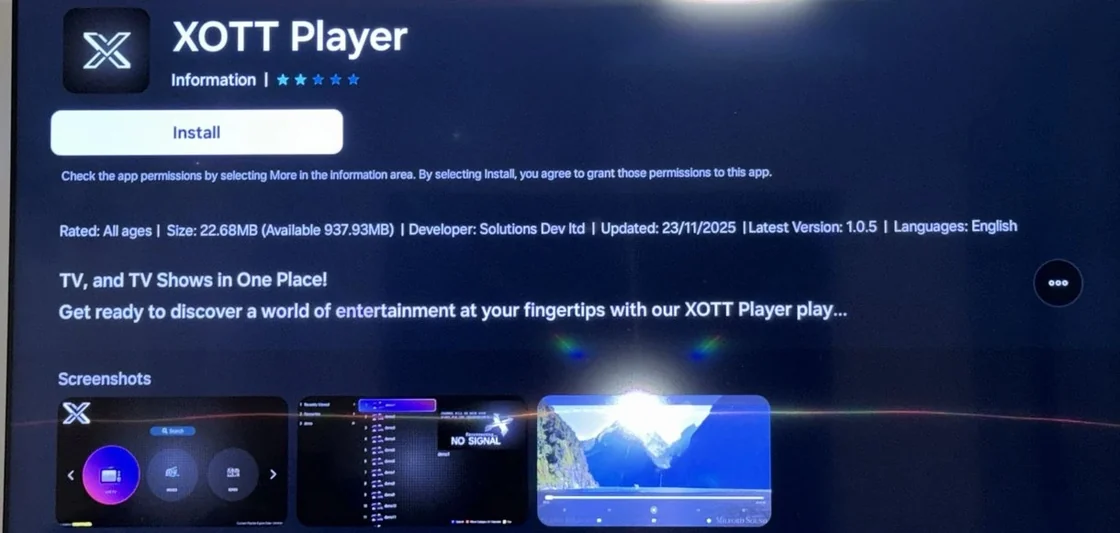
A service’s own app is often the practical choice when account management, programme search, licensed replay, or the available captions are tied to that app. A native app also gives you a support team that can check the intended workflow. Keep a note of the publisher and exact version because an app with a similar name can belong to someone else. An official app’s availability and features can also depend on the device and market. Confirm the listing on the platform you use and check that it supports the account you have. Check the publisher before installation · Guide to device and store compatibility.
| Question you need to answer | Useful starting app | Result that helps you decide |
|---|---|---|
| Can I use my own playlist and see its matched guide? | Kodi with IPTV Simple on a supported installation | One authorized channel and its expected programme match |
| Does this direct stream play on another desktop player? | VLC where the service permits direct playback | Picture, audio and elapsed time under the same conditions |
| Does this service support its own signed-in replay and account route? | Its documented native app or browser | The intended account opens the intended programme from its own replay list |
| Can this set-top box use my provider’s authorized portal? | The device’s supported portal client | The operator confirms the mode, then the registered device opens a control channel |
If two choices cover the task, favor the one you can maintain. Consider whether you can repeat setup on a replacement, which settings the app can export, and who can help if a version changes. A familiar interface is a valid reason to stay. Keep the old player as a control while trying the new one, and respect the account's allowed simultaneous sessions. Test an account’s supported connection limit.
Start with the publisher's official download page or use the store listing linked from that page. For Kodi, choose the operating system on the official download site and match it to the hardware you actually use. For VLC, use VideoLAN's platform download choices. For a streaming service, go from the service’s own help page to its supported app. If you found it through a search result, check the publishing name and support link once you reach the store. A logo or screenshot can be copied easily. Kodi’s official downloads · VideoLAN’s platform downloads.
Record the main app version immediately after installing, then check whether an add-on or separate component has its own build number. Keep the platform and date in the same note. A guide written for VLC 3 desktop may name a different menu from an iPhone build. A Kodi screenshot can show a different layout depending on the skin and version. If a button is absent, check which component is missing before assuming the publisher removed the feature.
When replacing a working app, read the publisher’s migration instructions before changing versions. Major updates may change data layouts or add-on compatibility, so check which release the publisher recommends for your device. If the only route you can find is an archived binary from an unrelated site, use the documented publisher route or ask support. Keep the device’s normal app protections enabled. Kodi for Windows · Kodi for Android · Google Play Protect.
Choose a channel you have permission to watch and can identify by its local programme. Check which regional feed you expect. On a fresh installation, test that channel before adding other sources, setting up groups, importing logos or adjusting timing. Note the date, time zone, chosen audio and expected guide entry. After one successful test, add the guide or account features in stages. If a later stage breaks, you can return to a small setup that worked.
Here is a fictional example. A playlist includes both “East City News” and “West City News.” You regularly watch the 7 pm East City bulletin. The first task is to confirm that the picture really shows East City at the scheduled time. Then check that the guide also calls it the East City bulletin. After that, test one separate news or culture channel you usually watch. A correct logo and a plausible programme name alone would leave the regional mix-up unresolved. Find the right affiliate · Match a guide to the exact feed.
Record your first usable combination. Include whether the channel was chosen through search, through its group or from the guide. Open it once from the same entry point your household uses. Then leave the programme and return to check whether the app keeps the intended selection. The point of a setup record is to make later comparisons easier. A page of settings matters less than knowing one channel, one path and one test that you can repeat. The first 15 minutes with a new setup.
Follow Kodi’s add-on instructions for your platform. Locate IPTV Simple in the supported add-on route for your Kodi installation, enable it, then open its configuration. You may find the PVR client under an add-on list instead of on the Live TV screen. Look for the selected client and its settings before importing. If the client is absent from your install, confirm which Kodi build you have and follow the publisher’s documented route for that platform. Kodi IPTV Simple add-on page · Kodi setup walkthrough.
In IPTV Simple, choose a local playlist when the provider gave you a file, or use the remote option for a playlist URL. Verify that the file is readable by the app and that you selected the version you meant to use. For a URL, keep it in the supported private field. Save the settings, then give the channels time to load. Open the same control channel before proceeding to the guide. If the list is empty, start by checking the playlist path, source mode and access.
Next add the XMLTV source supplied for the intended feed. Kodi IPTV Simple documents separate location and caching settings for playlist and guide data. Use the app's documented options and observe whether the configured refresh completes. Look at the intended station and one nearby time. Check the second station only after you have understood what happened on the first one. One wrong listing can indicate a specific mapping. An entirely empty guide can point to an import, file or access issue. IPTV Simple configuration reference · Check a guide that stays empty after refresh.
Settings for grouping, channel numbers and cached sources affect how a list appears. They are worth checking when a feed plays but is missing from the view you expect. Keep the original source and existing grouping settings while you compare. If a limited group is active, switch to the supported broader view once and see whether the channel appears. Save the change only if it improves the routine for the person who watches.
The playlist entry can have a display label and a guide identifier. The guide data also has a channel identifier attached to programme records. Kodi documents how IPTV Simple uses playlist metadata such as tvg-id in guide matching. A familiar channel name can appear more than once, particularly for separate regions, alternate feeds or different language editions. Use the record associated with the actual feed. Kodi guide mapping notes · XMLTV format definition.
Return to the fictional East City example. The guide source lists news-east.example and news-west.example as distinct identifiers. At 7 pm, East City shows a local bulletin while West City has a regional sports recap. If the playlist entry shows the East City bulletin on screen but the guide lists the sports recap, check which XMLTV record was linked. A global time correction could move the listing while leaving it attached to the wrong station. You have a precise comparison once you can name both the shown programme and the expected entry.
If every channel appears to be one hour off, check the device’s date, time zone and whether the source supplies an offset for its schedule. Confirm on a local station and one other station. If only an overnight item appears on the preceding day, check the programme’s start date in both time zones before changing global settings. Keep the previous mapping and any offset value so you can restore them. Two channels with the same display name · One-hour guide offset · Overnight replay date boundary.
Use a media address you have permission to open. On supported VLC desktop builds, the Network option lets you give the player a direct source. VideoLAN’s desktop guide shows the Windows and Linux menu route. On other platforms, follow the corresponding build’s interface. Run one item at a time and record whether it opens, whether the clock moves, and whether picture and sound both appear. Use a familiar programme or a permitted test clip so you know what to expect. VideoLAN’s VLC desktop guide · Test a network stream in VLC.
Keep the type of URL straight. A playlist used to browse television channels is a list of entries. An HLS master playlist describes available versions or tracks for a single presentation, and an HLS media playlist describes segments of a version. They can all look like text files and some use a similar extension. A successful direct stream test tells you about the item you opened. It leaves account activation, the service’s own programme guide and its replay controls to be tested in their supported app. HLS master and media playlists · RFC 8216 on HTTP Live Streaming.
Try a known local file first if you are checking a computer that has never used this player. If a local sample plays, you have shown that the player opens and sends audio and picture to that screen for one file. Then run the permitted network control. If the local file fails too, test a second known file and check the app’s output settings before contacting the service about the network source. Record both observations when you ask for help. A local file can use a different format, so a pass gives you one baseline rather than a diagnosis of the original failure.
For a useful fictional control, a Windows player shows a local station for two seconds before an error appears. The service has explicitly provided a direct URL to use in a second player. You close the first app, open the permitted source in VLC on the same PC and watch for three minutes. VLC runs smoothly. Repeating once on the first player helps you tell whether the difference follows the app. You still need to record the errors and settings before asking why. If VLC fails too, check that the source and delivery format are supposed to work on both. Run a Windows playback control · Compare playback on macOS.
Avoid a direct URL test when the only authorized route is the service's own sign-in. Use its documented browser or app on another supported screen. The service may use a protected or temporary playback route, and a manual test outside it could fail even if the intended setup is healthy. Ask the provider which control it supports. Why a stream may open in only one browser.
In a service’s app, write down the first screen where the expected behavior changes. If the app opens and the device shows a new pairing code, start with the service’s own device linking instructions. If the account opens but says the channel is unavailable, look at the named plan, viewing market and exact programme. If the list appears but the same programme never starts, record when the attempt fails. Every step narrows the places where a developer or provider can investigate.
| Observed step | Ask this first | Comparison that helps |
|---|---|---|
| App will not open | Did the same app version last work on this device? | Open another installed app, then repeat the original launch once |
| App opens and sign-in fails | Is this the approved login or pairing route for this account? | Try the service's supported account page or known device without changing the stored account |
| Channels load but one title fails | Does your plan and market include this exact item? | Open one confirmed item in the same app and account |
| Live picture works and the guide is empty | Does the guide belong to the app, account or a separate input? | Check one known station and refresh only the documented guide source |
| Replay starts at the wrong place | Is the app opening a dedicated replay, a guide entry or a live buffer? | Try the same programme from the service's supported replay section |
If the app gives an error number, copy it exactly without copying anything next to it that identifies your account. Note when the player stops, how many times it happened, and what still works. The most useful clue in a report can be “the app plays current channels but fails from the replay list on both test devices.” That gives the person receiving it a defined path to check. Identify live and replay as separate paths · Check the offered catch-up window.
Try to locate a station through the app’s full list before assuming it was removed from the source. You may have opened a custom group that includes a different regional feed or an older favorite. In Kodi, the Live TV channel manager controls whether channels are displayed, and the group manager controls which channels are included in a group. Check the full list and the channel’s active status before modifying the playlist itself. If you want a shorter list, save your chosen group and retain a way back to the complete one. Kodi channel manager · Kodi group manager.
Look at what happens after a source refresh. A favorite might lead to a row tied to a particular feed, while the publisher changes a display name in the main list. When you add a replacement favorite, open it and confirm the expected channel in the picture and the guide. If the app supports exporting favorites or groups, use its documented method. Otherwise a short list of the names you use and the actual regional editions is often enough to rebuild the view.
In a hypothetical installation, a sports channel appears under two similar labels. A saved favorite starts the wrong commentary. Search for the expected broadcaster in the full list, verify the feed by its current programme and audio, then add that precise row to a test group. Replace the old favorite only after you can open the new one twice. This is quicker than rebuilding an entire playlist or sorting every channel by name.
If alternate audio or captions matter, select a programme you know carries the track. Play it on the actual app and open the playback controls. Check whether the track appears, whether the label identifies what you hear or see, and whether the choice sticks when you return to that programme. VideoLAN documents subtitle tracks and codec information in VLC desktop. An app supplied by the service may have a different menu or show track options based on the title, device and profile. Netflix, for example, documents separate subtitle and audio choices and explains why language availability can vary. VideoLAN subtitle controls · VLC Windows codec information · Netflix audio and subtitle availability.
If a programme displays English captions in one player and none in another, repeat the test with the exact same edition. One app may be opening a service-managed copy while the other is playing a separately supplied source. You can report both, but the source difference belongs in the report. In the same way, a settings screen that shows your preferred language cannot make that track appear in a programme that lacks it. Check a second known item before changing the app’s global language.
Check three different actions when replay is important. Pause an authorized live programme and resume it. Open a completed programme directly from the replay list. Then close the app and return to that replay using the normal menu. Those actions can use different features. Kodi’s Live TV playback settings describe catch-up as dependent on provider support. Confirm the time range the service actually offers and test one title inside it. Check an evening or overnight example separately if that is when you usually watch. Kodi Live TV playback settings · Test a catch-up window.
| What you observe | What you can record | What to check next |
|---|---|---|
| Subtitles appear in VLC for an authorized file | The track is available in that copy and player | Confirm the other app opens the same copy |
| Preferred audio disappears after a channel change | The player or source presents a different default on the next channel | Compare available tracks on both channels before changing the global setting |
| Live pause works and a completed programme will not open | The live buffer behaves differently from the replay route | Open the completed item directly from the approved replay menu |
| Replay opens and jumps to a different time | The selected programme and starting point differ | Record the intended guide time, the observed opening and the local time zone |
When only one part matters for your household, give it more time during a trial. Spend a few minutes actually using subtitles, replay, favourites or search instead of assuming a short successful picture test covered them. If you are setting it up for someone else, give them the remote and watch which menu they look for first. It can be easier to choose a player that exposes the needed action than to teach a multi-step workaround every evening. Compare an IPTV trial on the features you use.
Find out when the problem began and which version was in use before and after. Start with the same account, source and network as before. If you can still use another working installation with the previous version, compare one item through a supported route. Observe version differences in the app and add-ons, along with the device software, because updates can arrive separately. Do not downgrade or switch to an unofficial build to create a comparison.
Take care when following instructions that use the word “reset.” The app can have a routine refresh, an option that clears temporary files, and a separate action that removes its saved settings. The device can have a much broader reset that affects other apps. Read the action’s description on the actual screen, keep a restore path, and start with the smallest operation relevant to the issue. Google’s Google TV app guidance shows app-level troubleshooting as its own step. Kodi also documents a Live TV data refresh that clears PVR database information and reimports data. Those procedures have different scopes. Google TV app crash support · Kodi Live TV settings · What clearing cache or data changes.
In a hypothetical Kodi update, an authorized channel list loads and plays, but its schedule still shows an old programme. You know the XMLTV source includes today’s entry. First check the configured source, local time and the app's documented guide refresh. If a narrower check identifies a stale guide, use the appropriate documented refresh and test a single known channel. Before clearing broader data, save the source instructions and settings you need to recreate the setup. An action that fixes an empty guide can be irrelevant to a picture that starts and stalls.
Write down what would be hard to recover if the app disappeared tonight. For one person it is a provider's setup email. For somebody else it is a set of channel groups and accessibility preferences assembled over months. Ask where the app stores or exports those settings, which parts follow an account, and which live only on the device. Test that your restore copy can be read on the storage you actually control. A screenshot is useful for a handful of settings. It is a poor way to store private playlist or account information.
| Item to preserve | Safer place to keep it | Useful restore check |
|---|---|---|
| Official setup route | Private installation notes with the publisher name and source type | You can still find the approved listing and read the instructions |
| Viewing account credentials | Your private password manager or the service's recovery process | You can sign in or recover access through the documented route |
| Playlist or guide access | A secure location you control, with provider instructions | The authorized source still exists and can load in the intended app |
| Favorites and mappings | App-supported export, or a plain note without private values | Restore one favorite and verify its exact programme guide |
| Audio and caption preferences | A short note with the preferred languages and default options | Confirm the same choices on an item that actually supplies those tracks |
Kodi documents its userdata layout and provides a backup add-on for supported installations. Follow its instructions for your platform and version. A configuration copy can contain private URLs or account references, so handle it like other sensitive data. Use protected storage and check the documentation before moving files between versions or platforms. Keep a known working copy if you are going to test restoring on another device. Kodi userdata documentation · Kodi Backup add-on.
For a native app, first try the publisher’s own account and restore process. Restoring an app purchase may use the platform account while signing in to view uses the service’s account. If favorites do not reappear, check whether they are stored on the device and whether an export or sync option was ever enabled. Make a short list of the items you can rebuild if the app has no portable format. Move the viewing account safely · Move an existing guide mapping.
Start on the new player with the authorized service or one authorized source. Check a familiar live channel. Then add guide data, then your groups and favorites. After those pass, check replay and track choices. If both apps allow the same source, use the same programme and repeat the comparison on the same network. If they require different approved routes, note that the test compares the whole experience from one app to the other.
Try a next-day check as well. Put the player into standby in the normal way, come back the next evening and look for a fresh guide listing. Open the main station from the same favorite or guide row. If you need to sign in again, note which account is requested. End the old session first where simultaneous viewing is limited. Keep the earlier app and configuration until the new setup passes the parts your household uses. Check concurrent session behavior · Check captions and audio on a live programme.
In a fictional move, a subscriber installs a new player on the same television and sees all their channels. The guide is mostly correct, but their preferred local station now opens the national feed. Before deleting the old player, they compare the guide mapping for the two stations. They also open the programme through Favorites on both apps to see whether the favorite points to a different playlist row. Keeping the old app turns an uncertain observation into a specific migration issue.
If something must be transferred to a different account or device, ask the service how it handles reassignment. Use the approved account channel to remove a device or disconnect its session after testing, when appropriate. Before giving away a device you own, follow the manufacturer’s removal or reset instructions. Check that you can still sign in on the replacement. Account access and local settings are separate concerns during handover.
Before sending a report, check which playback window you have open. A media player on a laptop can keep two windows active, one for a local recording and another for a network item. Close the idle control window and repeat the failing action once. If the failure follows only one window, include the window type and the input method in the report. That small detail tells someone else whether to reproduce a file open, a network open, or a resume from the library.
A good report starts with the result. “Player opens, but no XMLTV events appear after a documented refresh.” “Picture starts and audio goes silent after choosing the alternate track.” “Two authorized apps show the same feed, but one lists the wrong programme at 7 pm.” Each is specific enough for somebody to suggest a relevant next check.
Keep passwords, account tokens, playlist addresses, activation codes and any private device identifier out of a public screenshot or log. A URL can include a private account value in its path or query. An image of the app's settings can show it in several places at once. Use a cropped screenshot, a typed error line and a summary of the test if they answer the question. For a more detailed record, ask the publisher how to share it privately and review the contents before sending. Kodi’s documentation discusses personal information in diagnostic logs. Kodi log documentation · Write a useful playback report.
| Detail | What to share |
|---|---|
| Setup | Device model, OS, player publisher and version, and add-on version if applicable |
| Source type | Native app login, permitted M3U, XMLTV or supported portal, without its private values |
| Time | The date, local time and time zone of the attempt |
| Expected result | One identifiable authorized programme and the feature you expected to work |
| Actual result | The first failure step, visible error and how often you reproduced it |
| Comparison | One working app, programme or route and the single variable you changed |
Suppose a report says, “East City appears in the list and starts. Its guide is empty for the next two hours. West City has programmes in the same time window. The failure repeated after a guide refresh. Both use the same player and guide file. The provider confirms East City is included in that file.” It gives you a clear task to pursue. Check the local mapping and the identifier for the intended station, then document what changed. A report at that level helps the next person who finds the same symptom. Ask in the apps and players forum · Continue with programme guide diagnostics.