

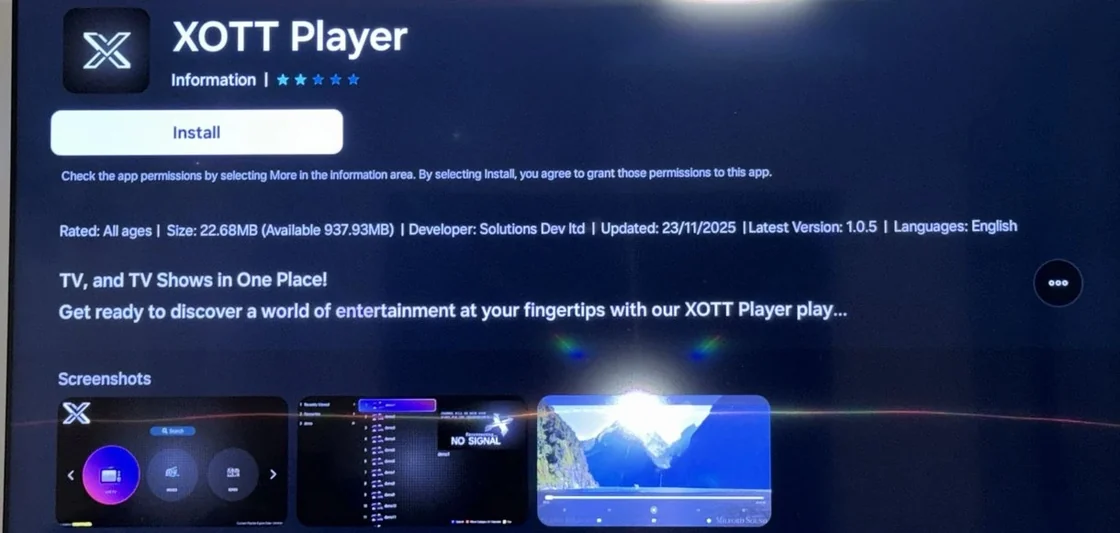
Test store availability on the exact TV model
A guide for one television platform can look like it applies to an entire brand. Find the model number and operating system first. Then check the regional store on that television and compare the actual app listing with the XOTT setup route. A supported external box is a separate setup decision if you have a compatible one to hand.
Check on your setup
Record the TV model, store region, player and visible input types. Ask support to identify the required app and account method together.
What the provider publishes
The XOTT hostname returned a public XOTT site on the review date.
For reseller enquiries
Request a way to identify which staff account authorized a customer change if a panel is available.
Artwork from the provider’s site
Provider artwork from supplied project files from the supplied website material.
Use XOTT’s setup route on the intended device
The public XOTT installation guide asks readers to identify a compatible player, open it and prepare the account for that app. Treat the guide as a starting route and check the listing on the actual screen. A phone browser might show an app page that a television’s regional store does not offer. Find the television model and software version first. Use the actual store or a publisher link you can verify from that device. If the name or icon differs from the instructions, ask for the full publisher and listing. XOTT installation guide
If the household uses an Apple TV attached to the screen, search using the Apple TV itself. The television’s built-in store belongs to the television system, which may be a different platform. Note which input you normally select and which remote will be used. XOTT provides an Apple TV page, so use it to start the conversation with the exact receiver and app. Where only a mobile build appears, record that specific finding and check the publisher’s supported platforms. XOTT Apple TV reference · Device guides
Run one task without changing the room setup
Open the verified app on the intended screen and check which sign-in fields are present. Give support their labels, keeping the values private. Ask whether the offered account fits that screen and whether the app itself carries a separate charge. If a second household member watches on a phone, record that as its own task. Native television viewing and casting depend on different parts of the setup. You can have a working phone session while the television receiver still needs checking.
For a simple test, choose a normal live programme and make sure the person who uses the television can open it with the usual remote. Try returning to the guide and reopening the station. Write down whether the TV recovered the last profile after you closed the player. On a second setup, repeat the same task and note which app is doing the work. One variable at a time gives you a result you can describe to support. Google Cast discovery guide · Verify an app publisher
Keep store availability in the account comparison
If the native store has no compatible listing and a suitable external device is available, price that arrangement separately. Include the box if you need to buy it and the extra input or remote steps the household will use. Then confirm the viewing account and its simultaneous allowance for the chosen setup. A useful XOTT order record names the market, device model, verified player and specific account terms. Store availability checked on one device remains evidence for that setup and date. Compare two viewing arrangements · Separate app and service costs